
Important: This article assumes familiarity with core mission setup concepts. Review Autonomous Mission Planning in ExynView first for an overview of ExynView—including waypoints, explore volumes, No Fly Zones (NFZs), stack startup, camera controls, and mission planning logic.
Table of contents:
⚠️ Before You Fly: Please ensure you're familiar with our Drone Safety and Emergency Actions Procedures to operate safely and understand warranty implications of flight.
Showing TPv3
By default ExynView show only displays Task Panel Basic, to show TPv3, open the eyeball menu and set task_panel_v3 to visible, once that's done you'll see the paper airplane appear in the flight controls menu in the bottom-right.
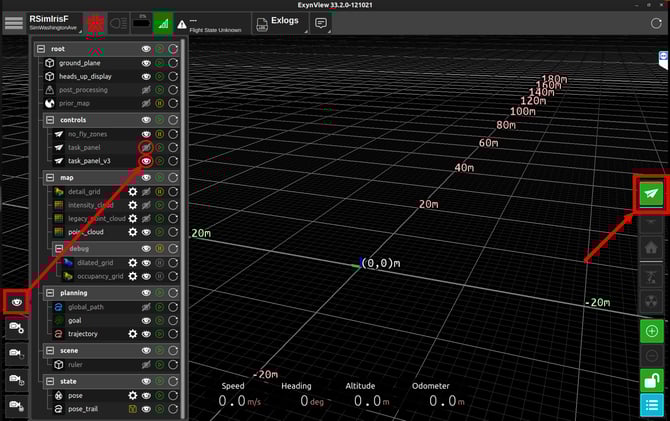
Setting TPv3 menu to visible
When you click the paper airplane icon, the mission control page of the TPv3 menu opens. The top section contains the emergency flight controls, and the lower section presents two flight-planning modes. Users can plan missions with the Mission Editor, defining waypoints and exploration volumes that remain fixed after takeoff (as in Task Panel Basic), or use Interactive Mode, which allows dynamic mission replanning during flight. We'll review both modes below.
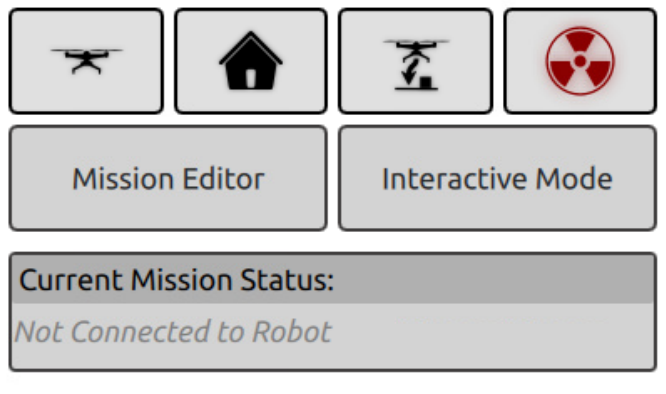 The mission control page of the TPv3 menu
Using the Mission Editor
As in Task Panel Basic, the Mission Editor allows users to define high-level mission objectives prior to takeoff. In TPv3, this workflow is expanded to support an unlimited number of objectives and the ability to chain multiple waypoints and exploration volumes into a single mission sequence. This enables more complex, continuous flight plans to be constructed before launch.
To begin, click the the "Mission Editor" button on the mission control page
Reading the Mission Plan
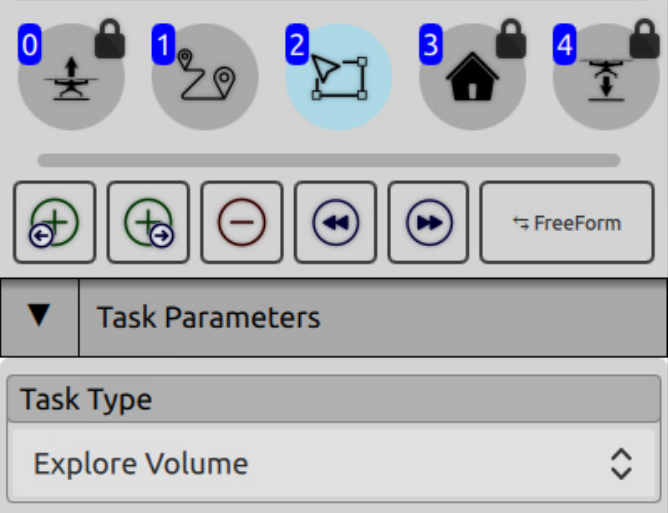
The mission plan is displayed across the top of the mission editor and shows the full sequence of objectives in execution order. The plan above includes all 5 types of objectives.
Every mission includes three fixed (locked) objectives:
-
Takeoff and Yaw (0): Always the first step
-
Return to Home (3): Automatically inserted after the final user-defined objective
-
Land in Place (4): Always the final step
Between takeoff and landing, users can define an unlimited number of objectives. As in Task Panel Basic, the two primary objective types are:
-
Fly-To Waypoint (1)
-
Explore Volume (2)
The currently selected objective is highlighted in light blue (e.g., the Explore Volume shown above). The task type for the selected objective can be modified using the Task Type dropdown menu.
Objective tools:

The Objective Tools allow you to modify the mission plan relative to the currently selected objective.
- Add objective before selected objective
- Add objective after selected objective
- Delete selected objective
- Undo last action
- Redo last undone action
- Toggle mission end behavior (Explore vs. Fly-To)
Once your satisfied with the mission plan, press and hold "Send Mission". This will take you back to the mission control page. From here, you'll have access to the safety actions. You'll also see the Current Mission Status list on this page, which will list each step of the mission plan and check them off in real time.
Using Interactive Mode
Interactive Mode introduces a new capability not available in Task Panel Basic: dynamic mission replanning during flight. In this mode, users can modify waypoints and exploration areas in real time as new LiDAR data is generated, allowing the mission to adapt to evolving environmental coverage and operational needs.
To begin, click the the "Interactive Mode" button on the mission control page.
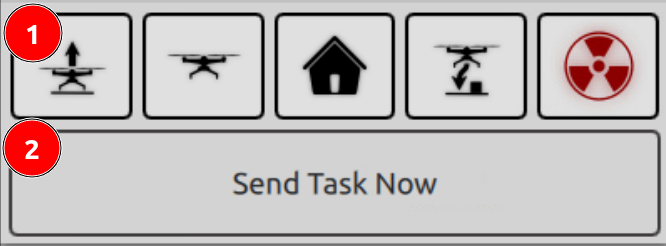
You'll see a similar page to the mission control page—with the addition of two new buttons: Takeoff (1) and "Send Task Now" (2). In addition, only a single mission objective, numbered 0, will be visible.
Flight behavior differs slightly in Interactive Mode. After starting the stack, the user must manually initiate takeoff (by pressing and holding the takeoff button). Once airborne, there is a short window to define and send the first mission objective—by repositioning Waypoint 0 to the desired location and selecting Send.
Note: Interactive mode can be used to override a flight plan during a planned mission
After completing the most recently assigned objective, the system will wait briefly for additional input. If no new commands are provided within this window, the robot will automatically initiate a return to home and land.
Flying the drone around in interactive mode
Tip: The time between the robot reaching a checkpoint and initiating an automatic return to home and land is brief. To extend your planning window, reposition the next waypoint while the robot is still in transit, then send the objective once it is correctly placed. You can also tap the hover button to keep the drone in the same place indefinitely.
A. Fleischhacker, Ver. 25.10.3